WordPress configuration without IA

Including plugins, themes and SSL

In this tutorial we are going to show you how to install your WordPress for the first time on your new WordPress Hosting, you will see that it is super-easy if you follow the steps we indicate. You can look at the tutorial in two formats, video and text.

Remember that after the installation you must wait between 15 and 30 minutes for the DNS to propagate and the SSL certificate to be issued and for everything to be correctly configured. We know that you are very excited to enter your new WordPress as soon as possible, but it will only take a few minutes 😉

Tutorial in video

If you prefer a video format, look at this

Play Video

Tutorial in text and images

If you prefer a reading format, look at this

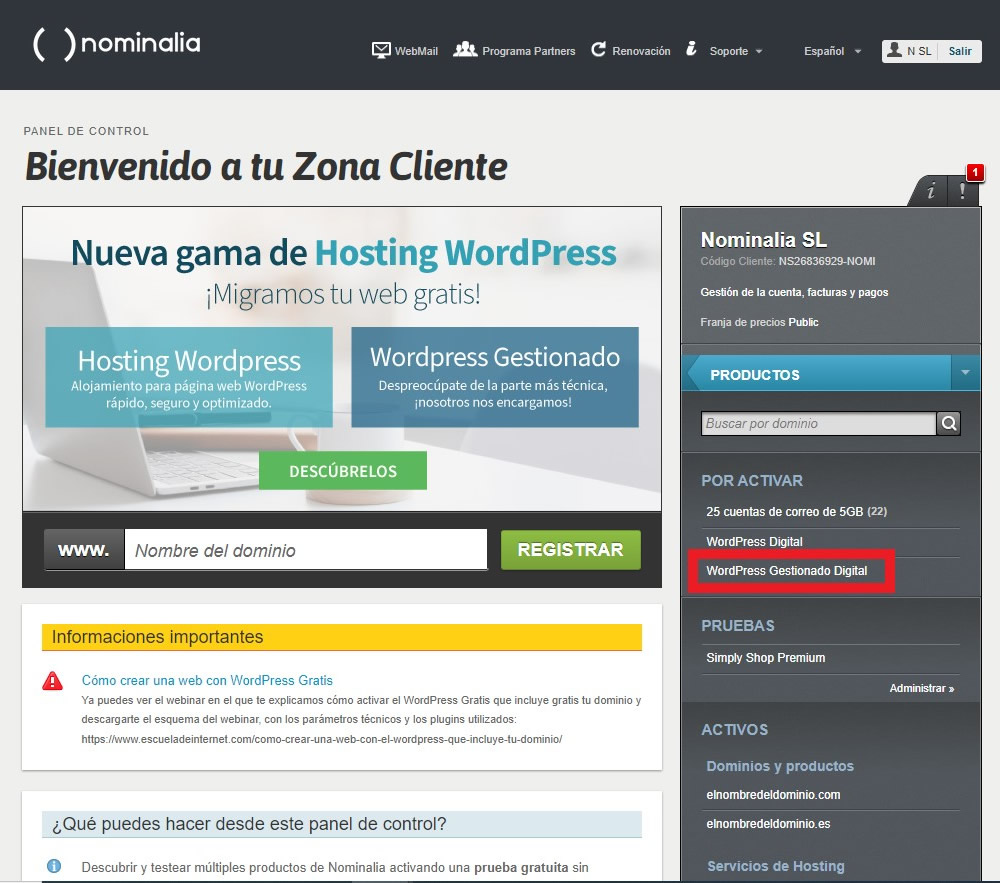
Once you have purchased one of our Managed WordPress Hosting plans (Start, Business, Digital or Premium) you will need to follow a few simple steps detailed in this manual to activate it. First of all, access your control panel via https://controlpanel.nominalia.com, where you will need to enter your username or customer code and the password you have set.

Once you are in your customer area, you will find your new hosting in the “TO BE ACTIVATED” section, click on it to begin:

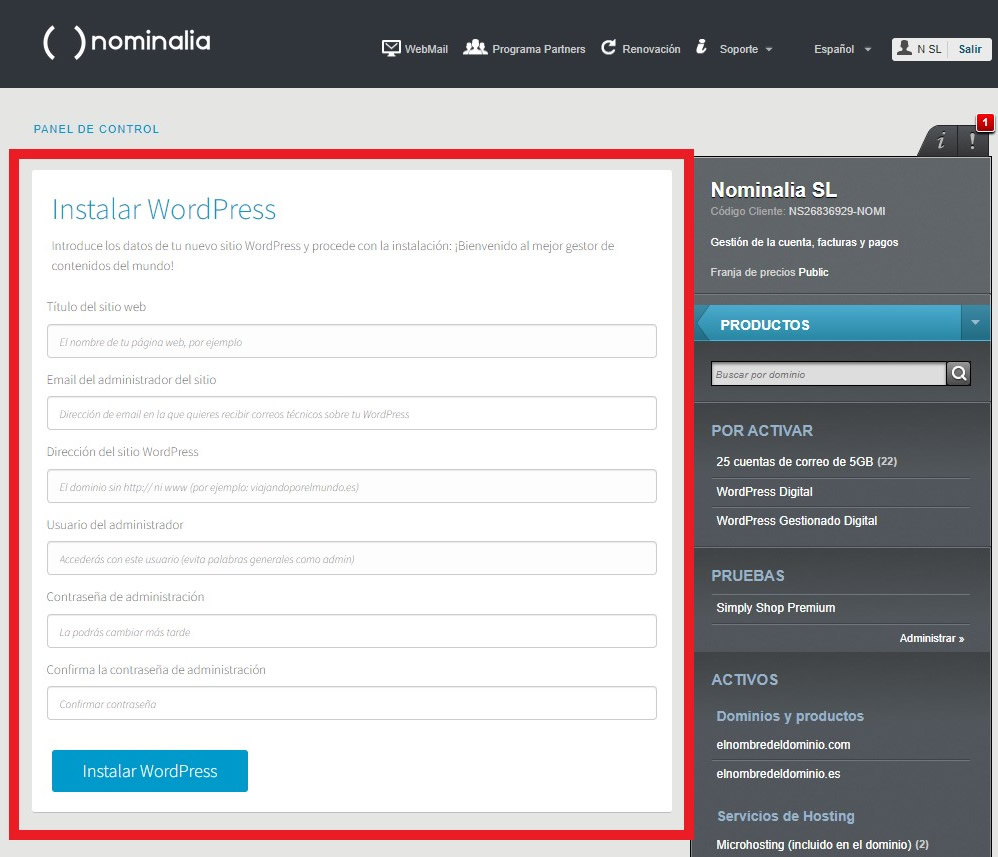
To start setting up your hosting you will need to fill out the following form:

  • Website title: You must enter the title of your new website.
  • Site administrator email: You must fill this out with an email account that you have access to, as this account will be used to inform you about updates and changes to your WordPress installation.
  • WordPress site address: You must add the domain where you want your website to be displayed.
  • Administrator user: Here you must create a user to access your new WordPress.
  • Administration password: You must create a password to access your new WordPress.

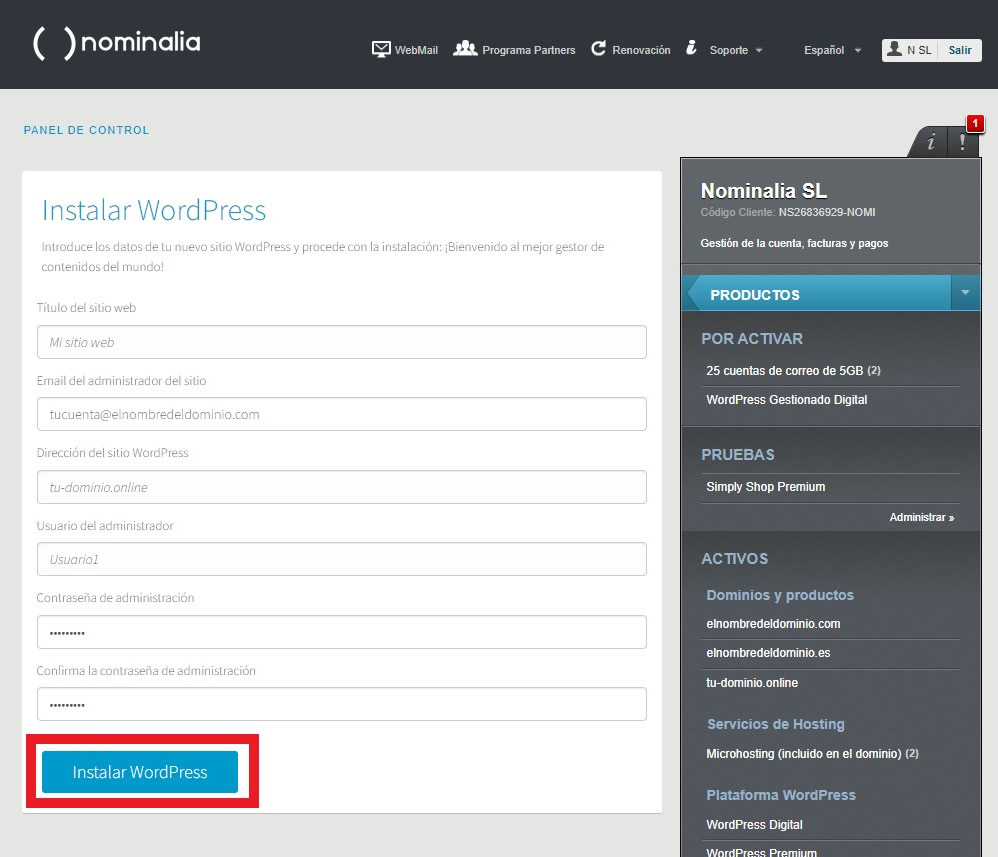
Once you have filled out all the fields correctly, click on “install WordPress”

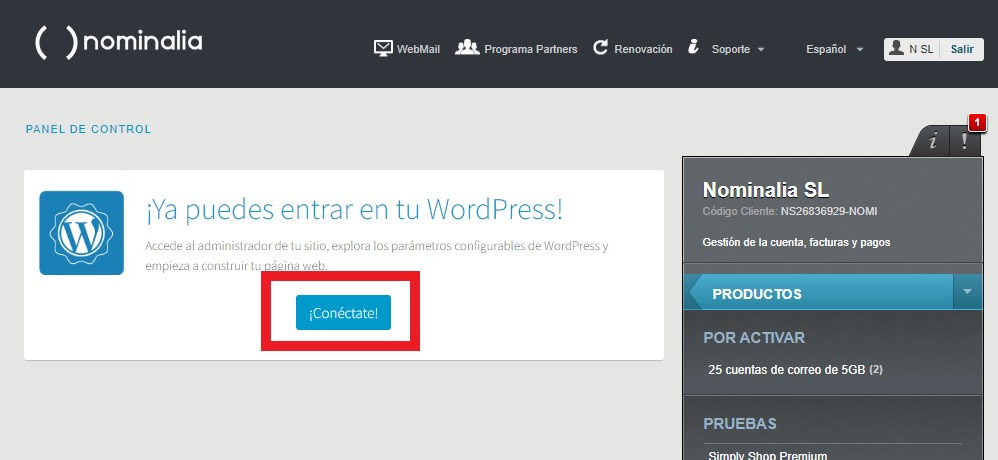
After a few seconds, your new hosting will be active and you will be able to access it by clicking on “Connect!”.

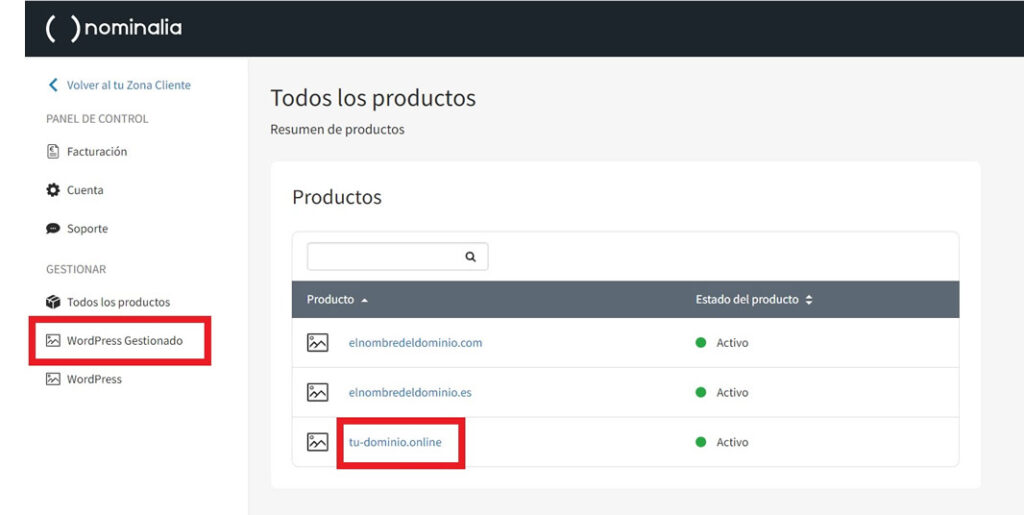
This will take you to the hosting management panel. If you have more active hosting, you can access each of them by clicking on their associated domain or filter between managed hostings and the rest:

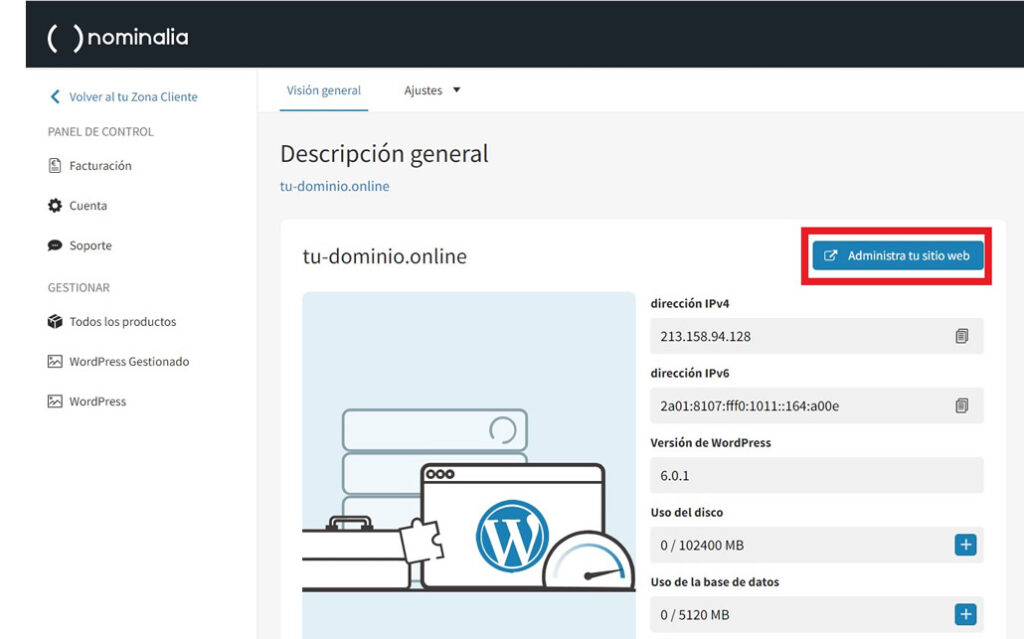
Tras clicar en tu dominio, accederás a tu hosting gestionado.

Podrás ver información como las IP’s de tu hosting o la versión de WordPress, también tendrás un acceso directo al administrador de WordPress clicando en “Administra tu sitio web”.

IMPORTANT:

After the installation you must wait between 15 and 30 minutes for the DNS to propagate and the SSL certificate to be issued and for everything to be correctly configured. We know that you are very excited to enter your new WordPress as soon as possible, but it will only take a few minutes.

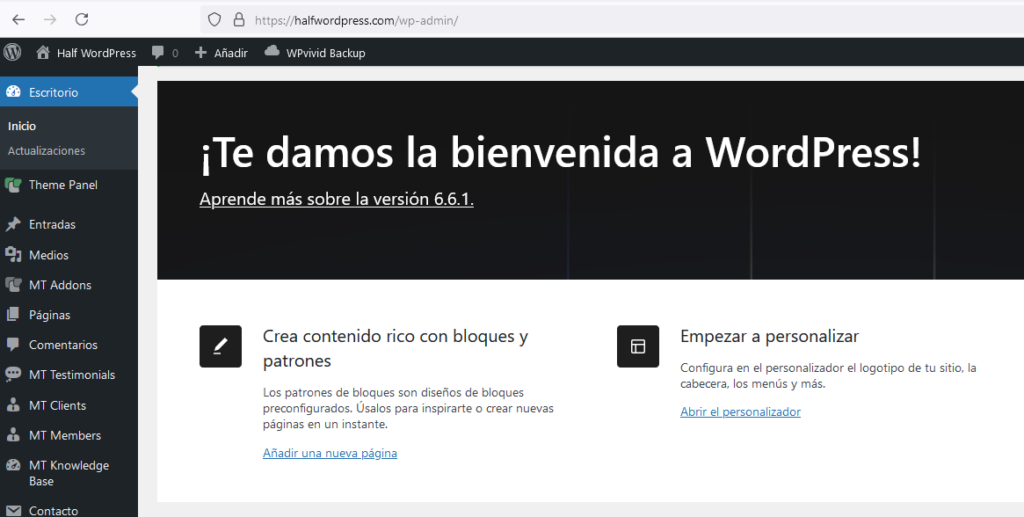
Now , just click on the “Admin your website” button and YOUR ARE INTO YOUR NEW WORDPRESS admin panel.

Other related tutorials that can help you

Here you have some tutorials that can help you with your new WordPress website